IPTV for Google TV: Install It Step by Step
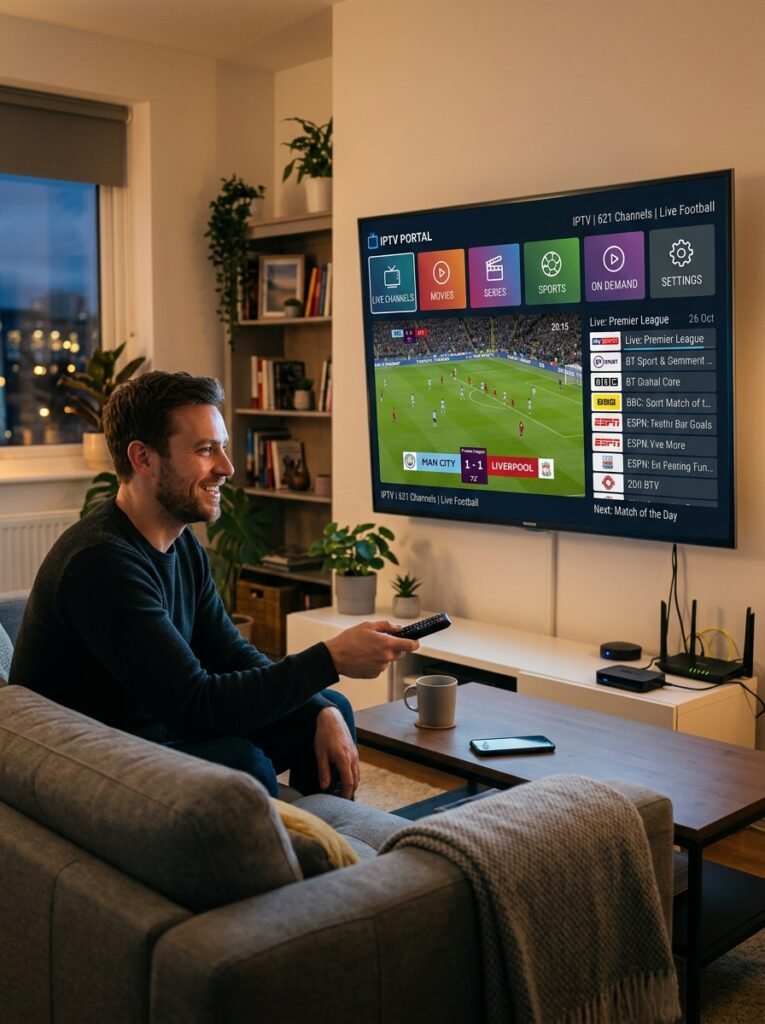
Yes, IPTV works on every Google TV device, from the Google TV Streamer and Chromecast with Google TV to TVs from Sony, TCL and Hisense with Google TV built in. Most players install straight from Google Play, and the rest can be added safely from the developer’s official site. NovaStar IPTV recommends a player for your device, matches a third-party provider plan, and walks you through setup. Matching and setup help are free; you pay only the provider’s listed price, from $12.99 a month.
$12.99
Plans from, per device
$0
NovaStar fee on top
5–10 Min
Activation after payment
No
Automatic renewal
IPTV for Google TV: Plans and Prices
These are our verified third-party provider's listed prices. NovaStar IPTV adds no commission or markup, and the setup help is free. Pick your devices and how many screens you use, and the prices update below.
1 Month
Test it on your Google TV first.
3 Months
Set it up once and watch through a whole season.
6 Months
About $10 a month per device, and you only order twice a year.
12 Months
Pay once and forget about renewals for a year.
Prices are in USD and paid once per term. Each plan covers one device; for more devices, multiply by the number of devices. Savings compare a longer plan with paying $12.99 every month at today's price. They aren't sale discounts. Any cost for the player app goes to the app's developer, and we tell you about it first. Before you pay, we confirm the plan and how to pay.
Activation usually takes 5–10 minutes after payment is verified and we have your setup details, subject to provider availability.
We send one reminder 1–2 days before your plan ends. Say no, and we stop following up.
If the plan can't be activated, your payment is refunded in full.
Test It on Your Google TV First
Ask for a free 24-hour trial issued by the provider, subject to availability. No card needed, and it doesn't turn into a paid plan.
Need 2 months or more than 5 devices? Ask for a custom plan. You can also read how ordering works, see family plans for several TVs, or check our terms.
Choose Your Device
Which Google TV Device Is Best for IPTV?
Every Google TV device runs the same software, but they aren’t equal for IPTV. Storage space and a wired network port make the biggest difference to how smoothly a player runs:
Google TV Devices Compared for IPTV
All of these run Google TV and install players from Google Play. Storage and the network port make the biggest difference.
| Device | RAM / storage | Ethernet | For IPTV |
|---|---|---|---|
| Google TV Streamer (2024) | 4 GB / 32 GB | Built in | Best Google pick; room for big apps |
| Chromecast with Google TV (4K) | 2 GB / 8 GB | Adapter needed | Good; clear storage now and then |
| Chromecast with Google TV (HD) | 1.5 GB / 8 GB | Adapter needed | Fine for HD viewing |
| TV with Google TV built in (Sony, TCL, Hisense) | Varies by model | Usually built in | Good; no extra box needed |
Google replaced the Chromecast with Google TV with the Google TV Streamer in 2024. Specs from Google and Android Central.
Casting from your phone instead? See IPTV for Chromecast. Want more power? Compare the NVIDIA Shield and Android boxes.

Quick Answer
Does IPTV Work on Google TV?
Yes. Every Google TV device runs Android TV underneath, so IPTV players install from Google Play just like any other app. If a player isn’t on Google Play, you can add it from the developer’s official site after allowing one trusted downloader app. In practice:
- Start with Google Play. It’s the safest source, and apps update automatically.
- Watch your storage. A Chromecast with Google TV has only 8 GB, so remove apps you don’t use.
- Use Ethernet where you can. The Google TV Streamer has a port built in, and most Google TV sets do too.
- Allow unknown sources only for one app. Then switch it back off after installing.
Google TV Settings That Matter for IPTV
A few settings decide whether IPTV installs and plays smoothly. Here's where to find them.
| Setting | Where to find it | Why it matters |
|---|---|---|
| Storage | Settings › System › Storage | Players need space for the TV guide; 8 GB devices fill up fast |
| Network | Settings › Network & Internet | Check signal strength, or switch to Ethernet |
| Unknown sources | Settings › Apps › Security & restrictions | Only needed if a player isn't on Google Play |
| Developer options | Settings › System › About › press Android TV OS build 7 times | Unlocks advanced settings; most people never need it |
| Match content frame rate | Settings › Display & Sound › Advanced display settings | Can make sports and movies look smoother |
Menu names can differ slightly on TVs from Sony, TCL and Hisense.
Get More From It
Tips for Better IPTV on Google TV
Google TV is easy to use, but a few tweaks keep IPTV fast, especially on devices with little storage:
Keep Storage Free
Check Settings › System › Storage and remove apps you don’t use. Player apps store TV guide data, so they slow down when space runs out.
Use Your Phone to Type
Typing logins with a remote is slow. The Google TV app on your phone works as a keyboard, so you can paste the login we send you.
Turn On Match Content Frame Rate
Under Settings › Display & Sound › Advanced display settings, matching the frame rate can make sports and movies look smoother on many TVs.
Restart Once a Week
Hold the Home button and choose Settings › System › Restart, or just unplug the device for 30 seconds. It clears memory and keeps players responsive.
Setup Overview
How to Set Up IPTV on Google TV, Step by Step
Search Google Play
Use Search on your Google TV to find the player we recommend.
Install the Player
Select Install. If it isn’t on Google Play, follow our safe sideload steps instead.
Add Your Login
Enter the Xtream Codes details or M3U link we send. The Google TV phone app makes typing easy.
Add to Favorites and Watch
Pin the player to your home screen, let the TV guide load, and start watching.
How It Works
How NovaStar IPTV Sets Up IPTV on Your Google TV in 3 Steps
NovaStar IPTV is a free matching and setup service, while a verified third-party provider supplies the subscription. You pay the provider’s listed price with no commission, markup or automatic renewal, and if your plan can’t be activated, you get a full refund.
Step 01
Tell Us Your Device
Let us know whether you have a Google TV Streamer, a Chromecast or a TV with Google TV built in.
Step 02
Confirm Your Plan and App
We confirm the plan, devices and how to pay, in writing, and name the player to install. You can also ask for a free 24-hour trial first.
Step 03
Activate and Watch
Activation usually takes 5–10 minutes after payment is verified. Then we send your login and help you set up the app, staying with you until the first channel plays.
Your Google TV IPTV Plan Is One Message Away
Plans start at $12.99 per device. Tell us your Google TV device, pay the provider’s listed price, and get activated, usually 5–10 minutes after your payment is verified.
Get Matched
Get IPTV on Your Google TV Today
Fill in the form and send it on WhatsApp or by email. We’ll recommend a player for your Google TV device, tell you whether it’s on Google Play, and help you sign in. Matching and setup help are free, and you can contact us 24/7.
- The right player for your Google TV device
- Provider plans from $12.99, no markup
- Free 24-hour trial, subject to availability
- No automatic renewal
Get Your Free Google TV Setup
Choose your details and send the message. It takes about 20 seconds.
Nothing is stored on this page. Your message opens in WhatsApp or your email app, so you can edit it before sending.
FAQ
IPTV for Google TV: Common Questions
Short answers about installing players, devices, storage and plans.
Yes. Every Google TV device can install IPTV players from Google Play. Add the M3U playlist or Xtream Codes login your provider sends, and your channels and TV guide appear on the TV.
Use Search to find the player on Google Play and select Install. If it isn’t on Google Play, turn on Developer options, install a trusted downloader app, allow unknown sources for that app only, and download the player from its developer’s official site.
First press Android TV OS build seven times under Settings › System › About to turn on Developer options. Then go to Settings › Apps › Security & restrictions › Unknown sources and allow only the app you’ll install from.
Yes. With 4 GB of RAM, 32 GB of storage and a built-in Ethernet port, it’s the strongest Google-made device for IPTV. The older Chromecast with Google TV works too but has only 8 GB of storage.
Yes. These TVs run the same Google TV software, so you install the player straight on the TV from Google Play, with no extra box needed. For other TV brands, see IPTV for Smart TV.
Players save TV guide data, and 8 GB devices fill up quickly. Remove apps you don’t use under Settings › Apps, and clear the player’s cache if your provider’s guide is large.
Usually it’s Wi-Fi strength or low storage. Use Ethernet if you can, free up storage, and restart the device. Our internet speed calculator shows the speed you need.
Google TV is the newer interface built on top of Android TV. IPTV players work on both, and the setup steps are nearly identical. For Android TV boxes, see IPTV for Android Box.
Yes. We can arrange a free 24-hour trial issued by the provider, subject to availability. You don’t need a card, and it doesn’t turn into a paid plan.
Each device on your plan counts as one, so two Google TV devices need a two-device plan. For several TVs, see our family plans. We confirm what your plan covers before you pay.
Our provider’s listed prices for one device are $12.99 for 1 month, $34.99 for 3 months, $59.99 for 6 months and $89.99 for 12 months, in USD. For more TVs, multiply by the number of devices. NovaStar IPTV adds no fee on top.
NovaStar IPTV is a free IPTV provider matching and setup service for US customers, and its official website is novastariptv.us. We match you with a verified third-party provider plan that fits your device, arrange activation and help you set it up. The provider supplies the subscription and streaming; NovaStar IPTV doesn’t host or stream content.
Troubleshooting
IPTV Buffering or Not Installing on Google TV? Try These Fixes First
Most Google TV problems come from low storage, Wi-Fi or a setting that blocks installs. Before anything else, work through this list:
- Free up storage under Settings › System › Storage.
- Restart the device under Settings › System › Restart, or unplug it for 30 seconds.
- Player won’t install from a link? Check Unknown sources for your downloader app under Settings › Apps › Security & restrictions.
- Update Google TV and the player under Settings › System › About › System update.
- Use Ethernet, or move the router closer, and turn off any VPN while you test.
- Still stuck? Message us your device, the app you use and what you see on screen.
Free Tools for Google TV Users
Find the cause before you change anything.
- AI IPTV Troubleshooter
- Home Network Health Check
- Internet Speed Requirement Calculator
- WiFi Coverage Calculator